
Every developer has faced the infamous phrase: “Well, it worked on my machine!” You write code, it runs perfectly locally, but the moment you push it to a staging server or a teammate’s computer, everything crashes. Version mismatches, missing environment variables, and OS conflicts break the app.
Docker solves this entirely. By standardizing how applications are packaged, shipped, and run, Docker isolates software so it behaves identically on any infrastructure—whether it’s your local laptop or a massive AWS cluster.
In this guide, we’ll explore the architecture behind Docker and build your very first containerized application step by step.
🏗️ Virtual Machines vs. Docker Containers
To truly understand Docker, you have to understand how it differs from a traditional Virtual Machine (VM).
- Virtual Machines: Each VM bundles your application code, required libraries, and an entire copy of a Guest Operating System. This hypervisor approach is incredibly heavy, taking minutes to boot and consuming gigabytes of RAM.
- Docker Containers: Containers share the host machine’s OS kernel instead of duplicating it. They run as isolated processes in user space, making them incredibly lightweight, highly efficient, and capable of booting up in milliseconds.
🏛️ The Core Docker Architecture
Docker uses a classic client-server architecture. When you work with Docker, you are interacting with three core components:
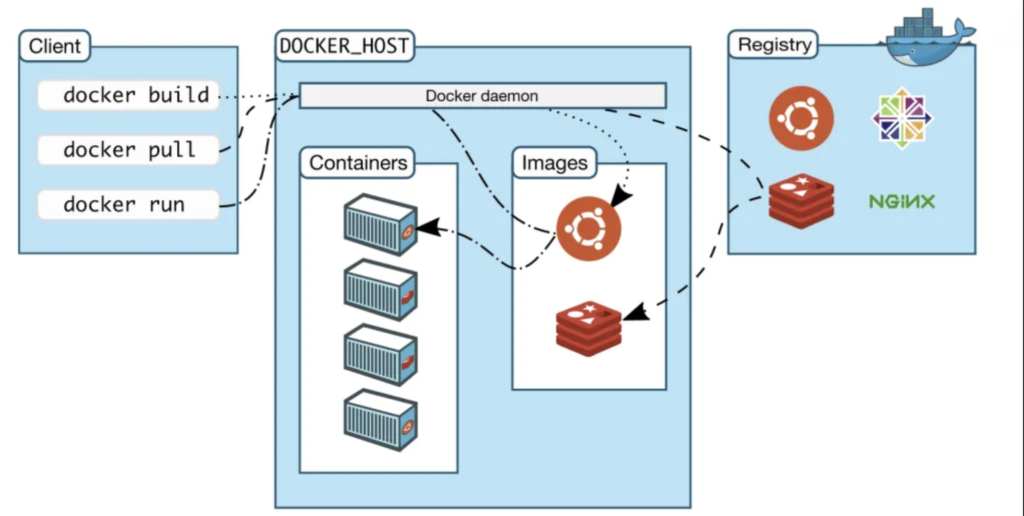
docker architecture client daemon registry containers images. Source: itnext.io
- The Docker Client: The command-line interface (CLI) tool where you type commands like
docker buildordocker run. - The Docker Host (Daemon): A background service (
dockerd) running on your machine that listens for client requests and handles the heavy lifting of building and managing containers. - The Registry (Docker Hub): A centralized cloud repository where developers store and download pre-built images.
Images vs. Containers
Think of a Docker Image as a blueprint or a recipe—it is a read-only template containing your code, runtime, system tools, and libraries. A Docker Container is a live, running instance of that image blueprint.
🛠️ Step-by-Step Guide: Dockerizing a Python App
Let’s take a simple Python script and package it into a self-contained Docker container.
Step 1: Create Your Application Code
Create a new directory named my-docker-app/ and add a script named app.py:
Python
# app.py
import os
import sys

print("🐳 Hello from inside a secure Docker container!")
print(f"Python Version running: {sys.version}")
print(f"Custom Environment Variable: {os.getenv('APP_ENV', 'Not Set')}")
Step 2: Write the Dockerfile
A Dockerfile is a text document containing all the sequential instructions a user could call on the command line to assemble an image. Create a file named exactly Dockerfile (no extension) in your root app directory:
Dockerfile
# 1. Start from an official lightweight Python image base
FROM python:3.11-slim

# 2. Set the internal working directory inside the container
WORKDIR /app

# 3. Copy our local application code into the container's working directory
COPY app.py .

# 4. Define an environment variable default
ENV APP_ENV=Production

# 5. Specify the command that executes when the container launches
CMD ["python", "app.py"]
Step 3: Build the Docker Image
Open your terminal inside your project folder and run the build command. The -t flag tags your image with a memorable name, and the . tells Docker to look for the Dockerfile in the current directory:
Bash
docker build -t my-first-image .
Docker will download the Python base layers, apply your copy commands, and securely save the compiled image block to your local storage cache.
Step 4: Run the Docker Container
Now, let’s spin up a live container instance from our freshly minted image template:
Bash
docker run my-first-image
Expected Output:
🐳 Hello from inside a secure Docker container!Python Version running: 3.11.x ...Custom Environment Variable: Production
Step 5: Overriding Environment Variables at Runtime
One of Docker’s biggest superpowers is portability. You can alter how the application behaves on the fly without changing a single line of code or rebuilding the image using runtime flags:
Bash
docker run -e APP_ENV=Staging my-first-image
Expected Output:
🐳 Hello from inside a secure Docker container!...Custom Environment Variable: Staging
📈 Top 3 Docker Production Best Practices
As you begin integrating Docker into your software development workflows, keep these engineering strategies in mind:
- Use Specific Tags: Avoid using
FROM python:latest. If the base image updates overnight, it could introduce breaking changes to your environment. Always specify exact versions (e.g.,python:3.11-slim). - Leverage
.dockerignore: Create a.dockerignorefile in your root folder to prevent bulky files like.git,node_modules, or local.envcaches from bloating your production image size. - Keep Images Small: Use minimal distributions like
-slimor Alpine Linux bases to keep your images under 100MB, which drastically cuts down network deployment download speeds.